
4201 4202 4203 4301 4302 4303 Critical Gear Alignment for Fuser Removal & Installation

SERVICE ADVISORY BULLETIN
Subject: Critical Gear Alignment for Fuser Removal & Installation Models Affected: HP Color LaserJet Pro 4201, 4202, 4203 & MFP 4301, 4302, 4303 Series Date: January 7, 2026
Priority: High

Problem Summary
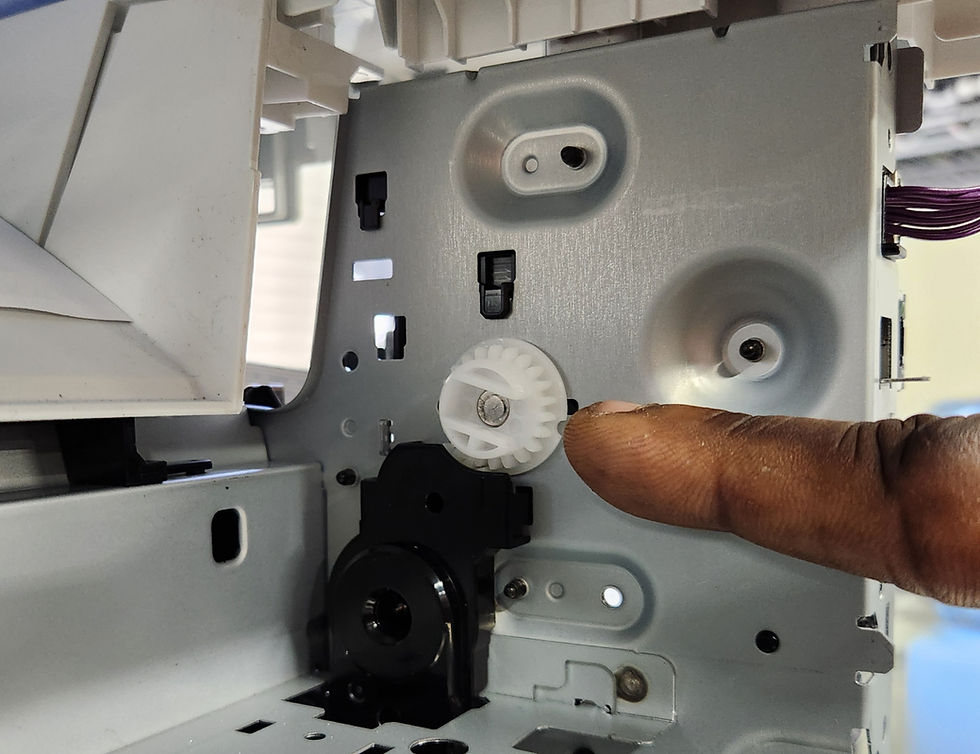
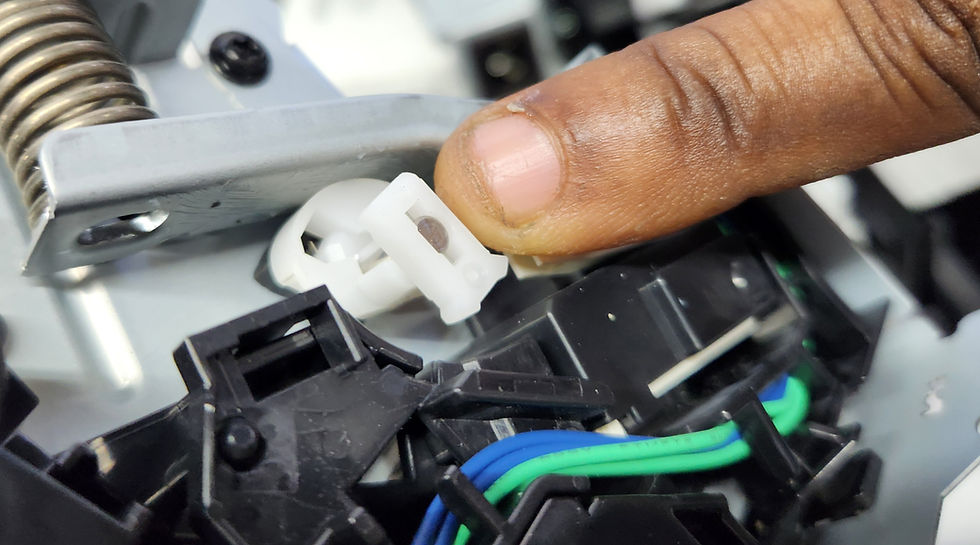
The fuser unit in the HP 4201/4301 series features a keyed (slotted) drive gear that interlocks with the printer’s main drive assembly. Unlike previous generations, this gear must be rotated to a specific "Removal Position" before the fuser can be extracted or installed.
Warning: Failure to align these gears before removal will cause the fuser to lock in place. Forcing the fuser out will strip the gears on the fuser and potentially break the drive assembly inside the printer chassis.
I. Removal Instructions
Do not attempt to pull the fuser if you feel resistance.
Step 1: Align Gears to "Removal Position" To ensure the printer chassis gear rotates to the correct open slot, perform one of the following methods:
Method A (Residual Power Discharge):
Unplug the printer from the power source.
Open the rear door to access the fuser area.
Press the Power Button on the printer.
Watch for the lights to blink; this action utilizes residual power to rotate the internal gear mechanism into the alignment position.
Method B (Standard Shutdown):
If Method A does not release the gear, plug the printer back in and turn it ON.
Once the printer is "Ready," press the Power Button to turn it OFF.
Allow the device to complete its full shutdown cycle. The standard shutdown process is programmed to park the gears in the correct removal position.
Step 2: Extract the Fuser Once aligned, the fuser should release and slide out smoothly. If it remains stuck, do not pry it. Repeat the alignment steps.
II. Installation Instructions
The replacement fuser must match the gear orientation of the printer.
Step 1: Inspect Gear Orientation Before inserting the new part, look at the drive gear on the side of the new fuser. It has a specific slot/key orientation.
Step 2: Match and Install
Compare the fuser gear slot to the drive gear inside the printer cavity.
If they are not aligned, manually rotate the gear on the new fuser until it matches the position of the printer gear.
Slide the fuser in. It should seat fully without excessive force.
Note: If the fuser does not slide in flush, the gears are clashing. Remove the fuser, re-check the angle, and try again. Never force the fuser into place.
For technical assistance or part replacements, please contact Metrofuser Support.
